Media Plugin
Media library, uploads, folders, picker UI, and reusable image inputs
Best for
Teams that need a shared media layer for product features while keeping files, metadata, and storage credentials under their control.
Upload, organize, register, and reuse media through a library that runs with your storage.
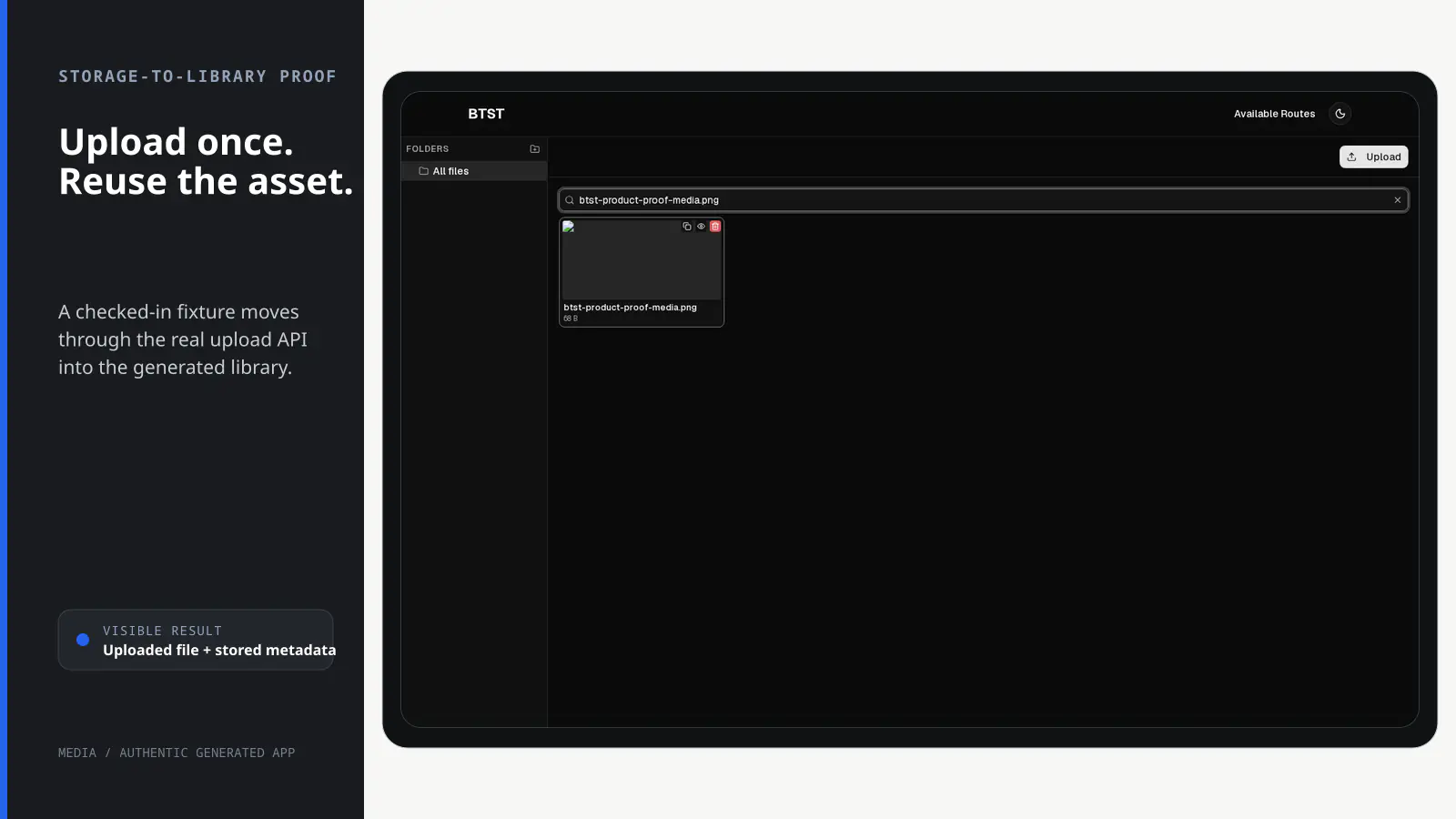
BTST supplies
- Asset and folder data models with typed upload, registration, and library APIs
- An SSR-aware media-library route with search, folders, and asset actions
- Embeddable MediaPicker and ImageInputField components
- Local, S3-compatible, and Vercel Blob storage adapter implementations
You supply
- A database adapter with isolated transaction support for persistent writes
- A configured storage adapter and its credentials or local upload directory
- Allowed MIME types, size limits, URL prefixes, and authorization policy
- The application routes and fields that embed the picker or image input
You own and customize
Asset metadata stays in your database and files stay in the storage you configure. You own limits, access policy, and embedding; the library view can be ejected.
Compatibility and dependencies
Maintained: Next.js 15+ App Router, React Router v7, TanStack Start.
Requires: An isolating Prisma, Drizzle, or Kysely database adapter for persistent writes; A configured media storage adapter.
External services: Optional S3-compatible storage or Vercel Blob when the adopter selects those adapters.
From registration to result
A semantic workflow, not a setup shortcut
- 1Choose storage
Configure local, S3-compatible, or Vercel Blob storage in your backend.
- 2Upload or register
Send a file through the matching protocol or register an allowed asset URL.
- 3Organize
Search assets, maintain folders, and edit metadata in the library.
- 4Reuse
Embed MediaPicker or ImageInputField wherever your application needs an asset.
Installation
Ensure you followed the general framework installation guide first.
Follow these steps to add the Media plugin to your BTST setup.
1. Add Plugin to Backend API
Import and register the media backend plugin in your stack.ts file:
import { createBackendStack } from "@btst/stack/api"
import { mediaBackendPlugin } from "@btst/stack/plugins/media/api"
import { localAdapter } from "@btst/stack/plugins/media/api/adapters/local"

const { handler, dbSchema } = createBackendStack({
  basePath: "/api/data",
  plugins: {
    media: mediaBackendPlugin({
      storageAdapter: localAdapter(),
      maxFileSizeBytes: 10 * 1024 * 1024,
      allowedMimeTypes: ["image/*", "application/pdf"],
    }),
  },
  adapter: (db) => createPrismaAdapter(prisma, db, {
    provider: "postgresql",
    transaction: true,
  }),
})

export { handler, dbSchema }
The mediaBackendPlugin() requires a storageAdapter. BTST currently ships with three modes:
localAdapter()for local filesystem uploads and self-hosted setupss3Adapter()for S3-compatible object storage using presigned uploadsvercelBlobAdapter()for direct uploads to Vercel Blob
Pick the backend storage adapter first, then make the client-side uploadMode match it. A mismatch between the two is the most common Media plugin integration mistake.
Media writes require an isolated database transaction so the final
authorization/CAS check and mutation commit atomically. Set transaction: true
for supported Prisma, Drizzle, and Kysely adapters. Existing manual setups that
omit it fail closed with ATOMIC_TRANSACTION_REQUIRED; add the option before
upgrading to v3. The memory adapter remains available for local, serialized
development use.
2. Add Plugin to Client
Configure the shared client runtime once, then give Media only its own upload and lifecycle choices:
import { createClientStack } from "@btst/stack/client"
import { mediaClientPlugin } from "@btst/stack/plugins/media/client"
import { QueryClient } from "@tanstack/react-query"

const getBaseURL = (serverOrigin?: string) =>
  typeof window !== "undefined"
    ? process.env.NEXT_PUBLIC_SITE_URL || window.location.origin
    : serverOrigin ||
      process.env.BTST_SITE_URL ||
      process.env.BASE_URL ||
      "http://localhost:3000"

export const getStackClient = (
  queryClient: QueryClient,
  options?: {
    headers?: Headers
    identity?: { readonly id: string; readonly [key: string]: unknown }
    origin?: string
  },
) => {
  const baseURL = getBaseURL(options?.origin)

  return createClientStack({
    api: {
      baseURL,
      basePath: "/api/data",
      ...(options?.headers ? { headers: options.headers } : {}),
    },
    site: { baseURL, basePath: "/pages" },
    queryClient,
    plugins: {
      media: mediaClientPlugin({
        uploadMode: "direct",
        identityPartition: options?.identity,
      }),
    },
  })
}
uploadMode must match the backend storage adapter. identityPartition is the
optional request identity snapshot used to align protected SSR cache keys with
the browser's hydrated identity. API/site locations, request headers, and the
React Query client belong to createClientStack() and are inherited by Media.
Pass the request URL's origin as options.origin during SSR when a canonical
BTST_SITE_URL or BASE_URL is not configured; browser stacks use the public
site variable or window.location.origin.
The media client plugin registers the /media page route and prefetches the
initial asset grid and folder tree during SSR. Create a request-specific stack
with headers on the server, and a separate browser stack without request
headers. The browser projection never serializes cookies or authorization
headers.
3. Import Plugin CSS
Add the media plugin CSS to your global stylesheet:
@import "@btst/stack/plugins/media/css";This includes the built-in media library UI, picker layout, folder tree, upload states, and image previews.
4. Configure the Provider
Pass the resolved browser stack to StackProvider. No Media override block is
required for the built-in experience:
"use client"

import { useMemo } from "react"
import { QueryClientProvider } from "@tanstack/react-query"
import { StackProvider } from "@btst/stack/context"
import { nextRouter } from "@btst/stack/next"
import { getOrCreateQueryClient } from "@/lib/query-client"
import { getStackClient, type StackClientOptions } from "@/lib/stack-client"

export function ClientLayout({ children, clientOrigins }: {
  children: React.ReactNode
  clientOrigins: StackClientOptions
}) {
  const queryClient = getOrCreateQueryClient()
  const stack = useMemo(
    () => getStackClient(queryClient, clientOrigins),
    [clientOrigins.apiOrigin, clientOrigins.siteOrigin, queryClient],
  )

  return (
    <QueryClientProvider client={queryClient}>
      <StackProvider
        stack={stack}
        router={nextRouter()}
      >
        {children}
      </StackProvider>
    </QueryClientProvider>
  )
}
Use the corresponding reactRouter() or tanstackRouter() adapter in those
frameworks. overrides.media is reserved for genuine browser presentation and
behavior choices such as imageCompression, onRouteRender, and
onRouteError; it no longer accepts query clients, transport headers, or the
upload mode. For a protected library, follow the Permissions
example below, which supplies both auth={clientAuth} and initialIdentity;
an identity snapshot is intentionally ignored when no auth adapter is present.
5. Generate and Apply Database Changes
The Media plugin adds database tables for assets and folders. Generate and apply your migrations:
npx @btst/cli generate
npx @btst/cli migrate
For more details on the CLI and all available options, see the CLI documentation.
Congratulations, You're Done!
Your media plugin is now configured and ready to use. Here is a quick reference of what you get out of the box:
Routes
| Route | Description |
|---|---|
/pages/media | Full media library UI with folders, uploads, URL tab, and asset browsing |
Core API endpoints
| Method | Endpoint | Purpose |
|---|---|---|
GET | /media/assets | List assets with filtering and pagination |
POST | /media/assets | Register an existing uploaded asset URL |
PATCH | /media/assets/:id | Update asset metadata |
DELETE | /media/assets/:id | Delete an asset |
GET | /media/folders | List folders |
POST | /media/folders | Create a folder |
DELETE | /media/folders/:id | Delete a folder |
POST | /media/upload | Direct upload endpoint for local storage |
POST | /media/upload/token | Presigned upload token endpoint for S3-compatible storage |
POST | /media/upload/vercel-blob | Upload handler for Vercel Blob |
Reusable UI pieces
| Export | Purpose |
|---|---|
MediaPicker | Embed the full media browser in your own forms and editors |
ImageInputField | Drop-in image field with preview, change, and remove actions |
createMediaUploadConfig() | Binds imperative uploads to the Media runtime resolved by the client stack |
uploadAsset() | Imperative upload helper for editors and non-React callbacks |
useRegisterAssetForm() | URL registration lifecycle with inline server field errors |
useCreateFolderForm() | Folder form lifecycle with notification and invalidation handling |
Common Patterns
Imperative uploads for editor callbacks
When you need to upload an image outside React hooks, bind uploadAsset() to
the Media runtime already resolved by your client stack:
import {
  createMediaUploadConfig,
  uploadAsset,
} from "@btst/stack/plugins/media/client"

const mediaClientConfig = createMediaUploadConfig(
  stack.provider.plugins.media,
)

const uploadImage = async (file: File) => {
  const asset = await uploadAsset(mediaClientConfig, { file })
  return asset.url
}
This preserves Media endpoint overrides, public browser headers, explicit credentials, and the configured upload mode. The generated apps use the same pattern to connect Blog, CMS, and Kanban image uploads to Media.
Embedding the picker in your own UI
Use MediaPicker when you want a compact "browse media" flow inside a custom form:
import { MediaPicker } from "@btst/stack/plugins/media/client/components"
import { Button } from "@/components/ui/button"

export function ImagePicker({ onSelect }: { onSelect: (url: string) => void }) {
  return (
    <MediaPicker
      trigger={<Button type="button">Browse media</Button>}
      accept={["image/*"]}
      onSelect={(assets) => onSelect(assets[0]?.url ?? "")}
    />
  )
}
Using the built-in image field
Use ImageInputField when you want a simple image preview and replacement flow without building your own wrapper:
import { ImageInputField } from "@btst/stack/plugins/media/client/components"

export function ProductImageField({
  value,
  onChange,
}: {
  value: string
  onChange: (value: string) => void
}) {
  return <ImageInputField value={value} onChange={onChange} />
}
Building custom media forms
The form hooks use the same resource declaration as the built-in UI. They map server validation issues to fieldErrors, send success and non-field error feedback through the configured notify provider, and invalidate only the affected media list caches.
import { useState } from "react"
import { useRegisterAssetForm } from "@btst/stack/plugins/media/client/hooks"

export function RegisterMediaUrl({ folderId }: { folderId?: string }) {
  const form = useRegisterAssetForm({ folderId })
  const [url, setUrl] = useState("")

  return (
    <form onSubmit={(event) => {
      event.preventDefault()
      void form.submit({ url })
    }}>
      <input
        value={url}
        onChange={(event) => {
          setUrl(event.target.value)
          form.clearErrors()
        }}
      />
      {form.fieldErrors.url && <p>{form.fieldErrors.url}</p>}
      <button disabled={form.isSubmitting}>Add asset</button>
    </form>
  )
}
useCreateFolderForm({ parentId, onSuccess }) provides the same lifecycle for { name } folder forms.
Standalone library URL state
The built-in /media route keeps its current folder and search in the URL:
folder=<id>is pushed to history when the user changes folders.q=<term>is replaced after a 300 ms debounce while the user types.- Empty/default values are removed from the query string.
The embedded MediaPicker intentionally keeps this state local, so opening a picker inside another form does not change the host page URL.
Permissions
Media publishes one browser-safe, runtime-schema-backed catalog from
@btst/stack/plugins/media/permissions. Configure the rule once and bind the
same definition to server and browser auth:
import { defineAuthorization } from "@btst/stack/authorization"
import { mediaPermissions } from "@btst/stack/plugins/media/permissions"
import { z } from "zod"

const identitySchema = z.object({
  id: z.string(),
  role: z.enum(["member", "admin"]),
  tenantIds: z.array(z.string()),
})

type Identity = z.infer<typeof identitySchema>

export const authorization = defineAuthorization({
  identity: identitySchema,
  permissions: [mediaPermissions] as const,
  rules: ({ media }) => {
    const belongsToTenant = (identity: Identity | null, tenantId?: string) =>
      identity?.role === "admin" ||
      Boolean(
        identity &&
        (!tenantId || identity.tenantIds.includes(tenantId)),
      )

    return [
      media.library.read.when(({ identity }) => identity !== null),
      media.asset.read.when(({ identity, facts }) =>
        belongsToTenant(identity, facts.tenantId),
      ),
      media.asset.upload.when(({ identity, facts }) =>
        // Vercel callbacks reach this rule only after provider verification.
        facts.phase === "callback" || belongsToTenant(identity, facts.tenantId),
      ),
      media.asset.update.when(({ identity, facts }) =>
        belongsToTenant(identity, facts.tenantId),
      ),
      media.asset.delete.when(({ identity, facts }) =>
        belongsToTenant(identity, facts.tenantId),
      ),
      media.folder.create.when(({ identity, facts }) =>
        belongsToTenant(identity, facts.tenantId),
      ),
      media.folder.delete.when(({ identity, facts }) =>
        belongsToTenant(identity, facts.tenantId),
      ),
    ]
  },
})import { createServerAuth } from "@btst/stack/authorization/server"
import { authorization } from "./authorization"
const serverAuth = createServerAuth({
authorization,
getIdentity: async ({ request }) => {
const session = await getSession(request.headers)
return session?.user ?? null
},
})
export const appStack = createBackendStack({
auth: serverAuth,
plugins: {
media: mediaBackendPlugin({
storageAdapter: s3Adapter({ /* ... */ }),
// Collection scope is a server concern, separate from allow/deny rules.
resolveTenantId: async ({ headers }) =>
(await getSession(headers))?.activeTenantId,
}),
},
// adapter, basePath, ...
})import { createClientAuth } from "@btst/stack/authorization/client"
import { authorization } from "./authorization"
export const clientAuth = createClientAuth({
authorization,
getIdentity: () => fetch("/api/session").then((response) => response.json()),
})
// Framework layout helpers resolve this once on the server. Pass the same
// snapshot to the Media SSR query partition.
const requestStack = getStackClient(queryClient, {
headers: requestHeaders,
identity: initialIdentity ?? undefined,
})
await requestStack.router.getRoute("/media")?.loader?.()
// Create a separate, header-free stack for the browser provider.
const browserStack = getStackClient(queryClient)
<StackProvider
stack={browserStack}
auth={clientAuth}
initialIdentity={initialIdentity}
>
{children}
</StackProvider>The Next.js, React Router, and TanStack framework helpers hydrate
initialIdentity; generated integrations forward that snapshot to Media. This
avoids a second identity request before the protected asset and folder queries
can render. Browser query keys also include the current identity, so a login,
logout, user switch, failed resolution, or refetch cannot reuse another
identity's response.
| Descriptor | Authoritative server facts | Built-in UI/operation |
|---|---|---|
media.library.read() | Server-side collection scope | /media, folder lists, picker/library browse gate |
media.asset.read(facts) | assetId, folder, MIME, tenant | Asset-list response, presentation, preview, copy, picker selection |
media.asset.upload(facts) | phase, folder, MIME, tenant | Direct upload, S3/Vercel initialization, URL/provider finalization |
media.asset.update(facts) | Current asset plus target folder | Asset metadata update |
media.asset.delete(facts) | Current asset/storage context | Destructive asset control and deletion |
media.folder.create(facts) | Current parent and tenant | New-folder controls and creation |
media.folder.delete(facts) | Every folder in the authoritative subtree | Recursive folder deletion |
Browser facts are presentation hints. The browser can, for example, hide an
admin button from identity.role, but the backend reloads the asset/folder,
derives tenant and storage facts, evaluates the same descriptor, and performs a
final compare-and-swap check before hooks, tokens, storage effects, or database
mutation. Query scoping remains in resolveTenantId; it is not a boolean rule.
An asset-list operation first checks library.read, derives the scoped rows on
the server, and then checks asset.read for every asset before returning any
asset data. A caller with only the collection rule receives no asset response;
the rules never filter rows. Recursive folder deletion likewise evaluates
folder.delete against the authoritative facts for the requested folder and
every descendant before hooks or mutation. A rule that denies any member of the
subtree denies the entire deletion. The backend also rejects malformed folder
trees that cross the server-resolved tenant boundary.
Every transport uses the same operation lifecycle:
- Parse and validate input.
- Load authoritative facts and resolve the request identity.
- Evaluate the exact permission (or fail closed when its rule is missing).
- Recheck authoritative state, then run domain hooks and the storage/database work.
- Run after/error lifecycle hooks.
stack.forRequest(request).operations.media.* follows that entire lifecycle.
stack.trusted.media.* is for trusted server jobs: it skips only user
authorization and still runs validation, storage/domain hooks, cleanup, and
ordering. Nested child-folder and asset writes inherit the tenant of their
authoritatively loaded parent folder. Omitting auth leaves request operations
permissive; configure server authorization to enforce the catalog.
Backend hooks are workflow/lifecycle hooks, not the authorization boundary. Do not trust browser ownership, tenant, MIME, status, URL, token, or storage facts inside a rule. Signed upload URLs and tokens are returned only by their exact upload operations, never by a collection-only permission.
Public behavior must be explicit in the exact catalog. For a public library,
declare both media.library.read.allow() and media.asset.read.allow(); the
collection rule alone does not release asset records. For a Vercel completion
callback, allow only facts.phase === "callback"; Media verifies the provider
signature and binds the callback to server-issued token context before that
public rule is evaluated. A callback payload is never authoritative merely
because the rule is public.
Translation and notifications
Built-in Media UI strings go through the StackProvider i18n provider under media.* keys. Action feedback goes through the notify provider instead of importing a toast library directly. With neither provider configured, the existing English copy and default notifications are used.
Multi-tenancy
The media plugin has first-class support for scoping assets and folders to a tenant — a user, organisation, or any other entity that should see only its own media. This is completely opt-in: if you do not configure resolveTenantId, the plugin behaves exactly as before.
How it works
Assets and folders each carry an optional tenantId column. The resolveTenantId hook is called on every HTTP request and returns the tenant identifier for that request. The plugin then:
- Filters
GET /media/assetsandGET /media/foldersto the resolved tenant. - Tags newly created assets and folders with the resolved tenant on
POST /media/assets,POST /media/upload,POST /media/upload/token, andPOST /media/folders. - Guards
PATCH /media/assets/:id,DELETE /media/assets/:id, andDELETE /media/folders/:id— if the resolvedtenantIddoes not match the resource'stenantId, the endpoint returns 404 (not 403, to avoid leaking that the ID exists). - Guards
folderIdassignments — supplying afolderIdthat belongs to a different tenant is rejected with 404 on all create and upload endpoints.
Returning null or undefined from resolveTenantId disables collection and
record lookup scoping for that request, which is useful for super-admin routes.
It does not allow a folder or asset to be reparented across tenant boundaries;
use the raw migration helpers for an intentional cross-tenant move.
Configuration
import { createBackendStack } from "@btst/stack/api"
import { mediaBackendPlugin } from "@btst/stack/plugins/media/api"
import { s3Adapter } from "@btst/stack/plugins/media/api/adapters/s3"
import { getSession } from "@/lib/auth"

const { handler, dbSchema } = createBackendStack({
  basePath: "/api/data",
  plugins: {
    media: mediaBackendPlugin({
      storageAdapter: s3Adapter({ /* ... */ }),
      resolveTenantId: async (context) => {
        const session = await getSession(context.headers as Headers)
        if (!session) throw new Error("Unauthorized")
        // Return the business profile ID as the tenant key.
        return session.user.activeProfileId ?? null
      },
    }),
  },
  adapter: (db) => createPrismaAdapter(prisma, db, {
    provider: "postgresql",
    transaction: true,
  }),
})
When resolveTenantId throws, the request is rejected. Use authorization rules
for allow/deny decisions and resolveTenantId only to derive the server-side
collection scope.
Get-or-create folders per tenant
A common pattern in trusted workflow automation is to find a tenant's root folder by name, creating it if it does not exist yet. The explicit tenant ID is an adapter-level concern, so use the retained standalone primitives instead of the removed raw business API:
import { createBackendStack } from "@btst/stack/api"
import {
  createFolder,
  getFolderByName,
} from "@btst/stack/plugins/media/api"

const app = createBackendStack({ /* ... */ })

async function getOrCreateProfileFolder(profileId: string) {
  const name = `blog-gen-${profileId}`
  const existing = await getFolderByName(app.adapter, name, null, profileId)

  if (existing) return existing

  return createFolder(app.adapter, {
    name,
    tenantId: profileId,
  })
}
getFolderByName(adapter, name, parentId?, tenantId?) scopes the lookup to a
name, an optional parent folder, and an optional tenant. Pass null for
parentId to search only root-level folders.
These lower-level primitives intentionally bypass operation authorization,
validation, and lifecycle hooks; keep them inside trusted adapter-owned
automation. Use app.trusted.media for ordinary trusted business calls that
should retain the complete operation lifecycle.
API Reference
Backend (@btst/stack/plugins/media/api)
mediaBackendPlugin
Prop
Type
MediaBackendConfig
Choose your storage adapter and optional upload constraints:
Prop
Type
MediaBackendHooks
Customize backend behavior with optional lifecycle hooks for uploads, listing, folder management, and deletes:
Prop
Type
Example usage:
import { mediaBackendPlugin } from "@btst/stack/plugins/media/api"
import { localAdapter } from "@btst/stack/plugins/media/api/adapters/local"

mediaBackendPlugin({
  storageAdapter: localAdapter(),
  hooks: {
    onBeforeUpload: async (meta) => {
      if (await exceedsStorageQuota(meta.size ?? 0)) {
        throw new Error("Storage quota exceeded")
      }
    },
    onBeforeDeleteAsset: async (asset) => {
      if (asset.mimeType.startsWith("image/")) return
      throw new Error("Only image deletion is allowed here")
    },
  },
})
MediaApiContext
Prop
Type
StorageAdapter
Prop
Type
DirectStorageAdapter
Prop
Type
S3StorageAdapter
Prop
Type
VercelBlobStorageAdapter
Prop
Type
BTST's Vercel Blob adapter uses handleUpload from @vercel/blob/client for the /media/upload/vercel-blob token exchange route.
Client (@btst/stack/plugins/media/client)
mediaClientPlugin
Prop
Type
MediaClientConfig
The factory accepts only Media-specific choices. Shared transport, site, and
React Query values come from createClientStack().
Prop
Type
MediaClientHooks
These hooks run around the media library SSR loader:
In v3, rename onLoadError to onErrorLoad. The error observer runs at most
once per loader execution, and observer failures cannot make SSR reject.
Prop
Type
MediaLoaderContext
Prop
Type
MediaPluginOverrides
Configure media-specific overrides and route lifecycle hooks:
Prop
Type
MediaUploadMode
Prop
Type
MediaRouteContext
Prop
Type
uploadAsset
Prop
Type
MediaUploadClientConfig
Prop
Type
UploadAssetInput
Prop
Type
Components (@btst/stack/plugins/media/client/components)
MediaPicker
The full popover-based media browser with Browse, Upload, and URL tabs:
Prop
Type
MediaPickerProps
Prop
Type
ImageInputField
Use the built-in image preview field when you only need single-image selection:
Prop
Type
Hooks (@btst/stack/plugins/media/client/hooks)
The Media plugin exposes React Query-powered hooks for reading and mutating assets and folders:
useAssets
Prop
Type
useFolders
Prop
Type
useUploadAsset
Prop
Type
useRegisterAsset
Prop
Type
useDeleteAsset
Prop
Type
useCreateFolder
Prop
Type
useDeleteFolder
Prop
Type
useRegisterAssetForm
Prop
Type
UseRegisterAssetFormOptions
Prop
Type
useCreateFolderForm
Prop
Type
UseCreateFolderFormOptions
Prop
Type
Query keys (@btst/stack/plugins/media/query-keys)
mediaResources is the shared declaration used by client hooks and SSR query factories. Media list keys include the resolved service location so stacks that share a QueryClient cannot read or invalidate another Media endpoint's data:
- Asset lists:
["mediaAssets", "list", discriminator, { identity?, endpoint: { baseURL, basePath } }] - Folder lists:
["mediaFolders", "list", "all" | "root" | parentId, { identity?, endpoint: { baseURL, basePath } }]
Pass the same browser-safe endpoint partition to resource factories and raw key builders:
import {
  MEDIA_QUERY_KEYS,
  type MediaEndpointPartition,
} from "@btst/stack/plugins/media/api"
import { createMediaQueryKeys } from "@btst/stack/plugins/media/query-keys"

const endpoint: MediaEndpointPartition = {
  baseURL: "https://media.example.com",
  basePath: "/api/data",
}

const queries = createMediaQueryKeys(client, headers)
const assetsQuery = queries.mediaAssets.list(
  { limit: 40 },
  undefined, // anonymous identity partition
  endpoint,
)
const foldersQuery = queries.mediaFolders.list(undefined, undefined, endpoint)

const assetsKey = MEDIA_QUERY_KEYS.assetsList(
  { limit: 40 },
  undefined,
  endpoint,
)
In v3, the endpoint is a required third list argument. When migrating manual SSR or SSG prefetch code, use the exact baseURL and basePath resolved for Media in the browser stack so hydration reuses the same cache. The partition deliberately accepts no headers, credentials, or API client; keep those transport values in the client/factory configuration. For authenticated data, pass the same identity partition used by MediaClientConfig.identityPartition as the second argument.
MediaEndpointPartition
Prop
Type
useFolders(undefined) lists all folders, while useFolders(null) lists only root folders. The two calls intentionally have distinct cache keys and HTTP semantics.
Asset search trims whitespace and accepts at most 200 characters. Because BTST adapters do not expose a portable substring operator, the backend searches within the newest 1,000 matching-scope assets before applying result pagination.
Asset uploads, URL registration, and deletes also refetch inactive asset-list variants. This keeps the Browse tab current when it remounts after an Upload or URL action.
The picker deliberately uses the infinite asset resource directly instead of the core useSelect helper: its folder tree, MIME filtering, thumbnails, multi-selection, and paginated grid need the richer Media-specific UI state.
Server-side Data Access
Use app.forRequest(request).operations.media for user-driven calls and app.trusted.media for explicitly trusted jobs. Both use the maintained operations; trusted calls skip user authorization but retain validation, tenant resolution, authoritative facts, storage/domain behavior, and hooks. app.raw.media contains only the tenant-free SSG prefetchForRoute helper.
Standalone getter and mutation exports remain lower-level adapter primitives for plugin internals and migrations whose caller owns authorization and lifecycle composition.
AssetListParams
Prop
Type
AssetListResult
Prop
Type
FolderListParams
Prop
Type
CreateAssetInput
Prop
Type
UpdateAssetInput
Prop
Type
CreateFolderInput
Prop
Type
Types
Asset
Prop
Type
Folder
Prop
Type
SerializedAsset
Prop
Type
SerializedFolder
Prop
Type
Static Site Generation (SSG)
The raw SSG helper can prefetch the initial library without a live HTTP server:
await appStack.raw.media.prefetchForRoute("library", queryClient, {
  baseURL: "https://app.example.com",
  basePath: "/api/data",
})
This seeds the same anonymous asset/folder keys used by the browser and strips
tenant fields. The endpoint must exactly match the Media API location resolved
by the browser stack; it scopes the cache and resolves local-adapter asset URLs,
but accepts no headers or credentials. The helper deliberately performs no
request authorization. Use it only when the generated page is intentionally
public and protected at the deployment boundary; never put private or per-user
Media data into a shared static build.
Authenticated SSR should instead forward request headers, hydrate
initialIdentity, and pass that identity as MediaClientConfig.identityPartition.
Shadcn Registry
The Media plugin UI layer is distributed as a shadcn registry block. Use the registry to eject and fully customize the page components while keeping all data-fetching and API logic from @btst/stack.
The registry installs only the view layer. Hooks and data-fetching continue to come from @btst/stack/plugins/media/client/hooks.
npx shadcn@latest add https://github.com/better-stack-ai/better-stack/blob/main/packages/stack/registry/btst-media.jsonpnpx shadcn@latest add https://github.com/better-stack-ai/better-stack/blob/main/packages/stack/registry/btst-media.jsonbunx shadcn@latest add https://github.com/better-stack-ai/better-stack/blob/main/packages/stack/registry/btst-media.jsonThis copies the media page components into src/components/btst/media/client/ in your project. All relative imports remain valid and you can edit the files freely while the plugin's data layer stays intact.
Using ejected components
After installing, wire your custom components into the plugin via the pageComponents option in your client plugin config:
import { mediaClientPlugin } from "@btst/stack/plugins/media/client"
import { LibraryPageComponent } from "@/components/btst/media/client/components/pages/library-page"

mediaClientPlugin({
  uploadMode: "direct",
  pageComponents: {
    library: LibraryPageComponent, // replaces the media library page
  },
})
The ejected library page reads the resolved API/site/query runtime and upload
mode from the registered stack. Optional image compression and route lifecycle
customization remain in the inferred media provider override.